Live Collaboration and Cursor Chat
Work together in real time and send quick messages by your cursor.
TL;DR
Sharing a mushaf or notebook with editors from Share & Export lets you work on it together in real time, each shown by a live coloured cursor. With a keyboard, pressing / opens cursor chat to send a quick message beside your cursor; it isn't available on touch-only devices or Document pages.
Last updated 27 September 2026

When you share a mushaf or notebook with editors, you can work on it together in real time. You will see each person's coloured cursor, with their name, moving live on the canvas.
Using Cursor Chat
Cursor chat lets you send a quick message right next to your cursor without leaving the page. Press the / key to open the cursor chat box, type your message, then press Enter to send it (or Esc to close it). It appears beside your cursor for the others in the session and then fades away. It is perfect for pointing something out during a shared study session.
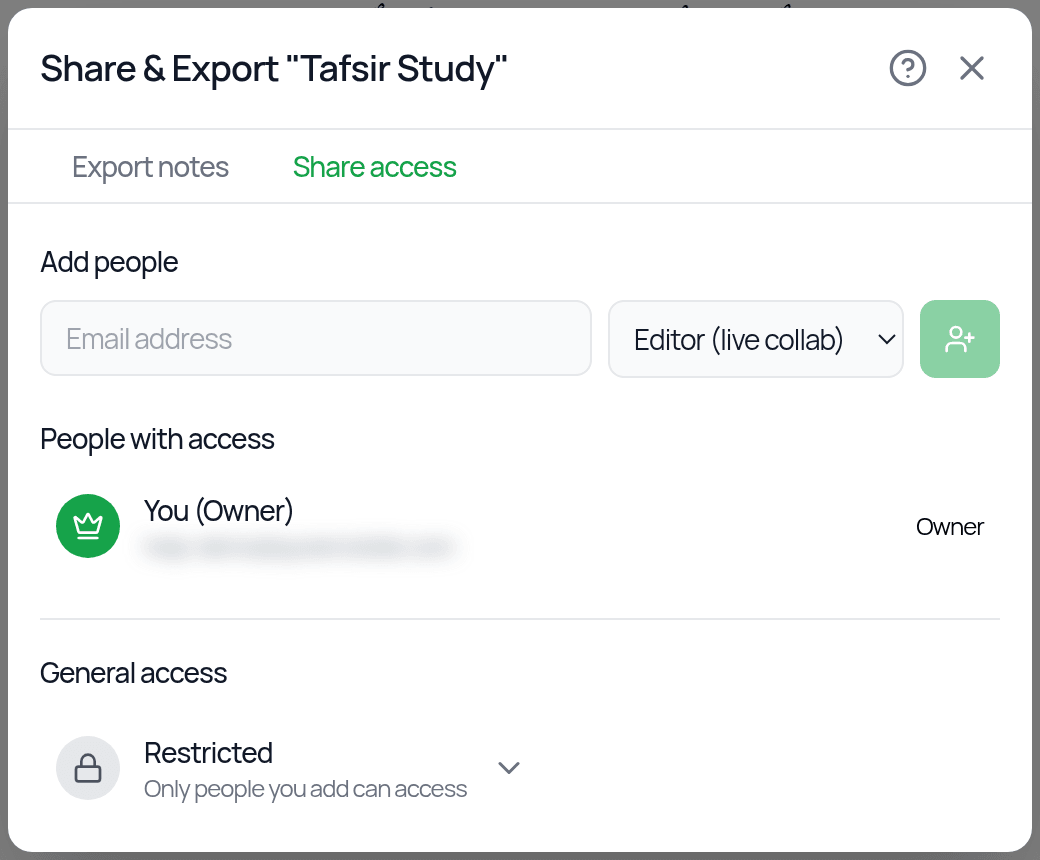
To start collaborating, open More actions > Share & Export (or a card's ⋮ menu on the dashboard) and go to the Share access tab. Add people by email as Editor (live collab). They need a Qurannotate account with that email, and they must accept the invite on their Friends page under Requests. You can also switch General access to Anyone with the link and share an Editor link.
Cursor chat needs a mouse and keyboard, so it is not available on touch-only devices, and it does not work on Document pages. Live cursors appear on a shared canvas.
Was this helpful?
Ready to annotate the Qurʼān?
Qurannotate is free to start — no sign-up required on web.