Embedding a YouTube Video
Drop a playable YouTube video straight onto your canvas.
TL;DR
Copy a YouTube link and paste it onto a canvas to drop in a playable video you can move, resize, and play in place, including shorts, live streams, and playlists. New Document notebooks don't support YouTube videos, and the video streams from YouTube, so it needs an internet connection.
Last updated 27 September 2026

You can place a playable YouTube video directly onto a canvas, so a lecture or tafsir video sits right beside your notes.
How to Embed
Copy the video's link from YouTube, then paste it onto the canvas (press Ctrl+V on Windows or Cmd+V on Mac, or right-click and choose Paste). The video appears as a player you can move, resize, and play in place. It works with normal videos, shorts, live streams, playlists, and short youtu.be links.
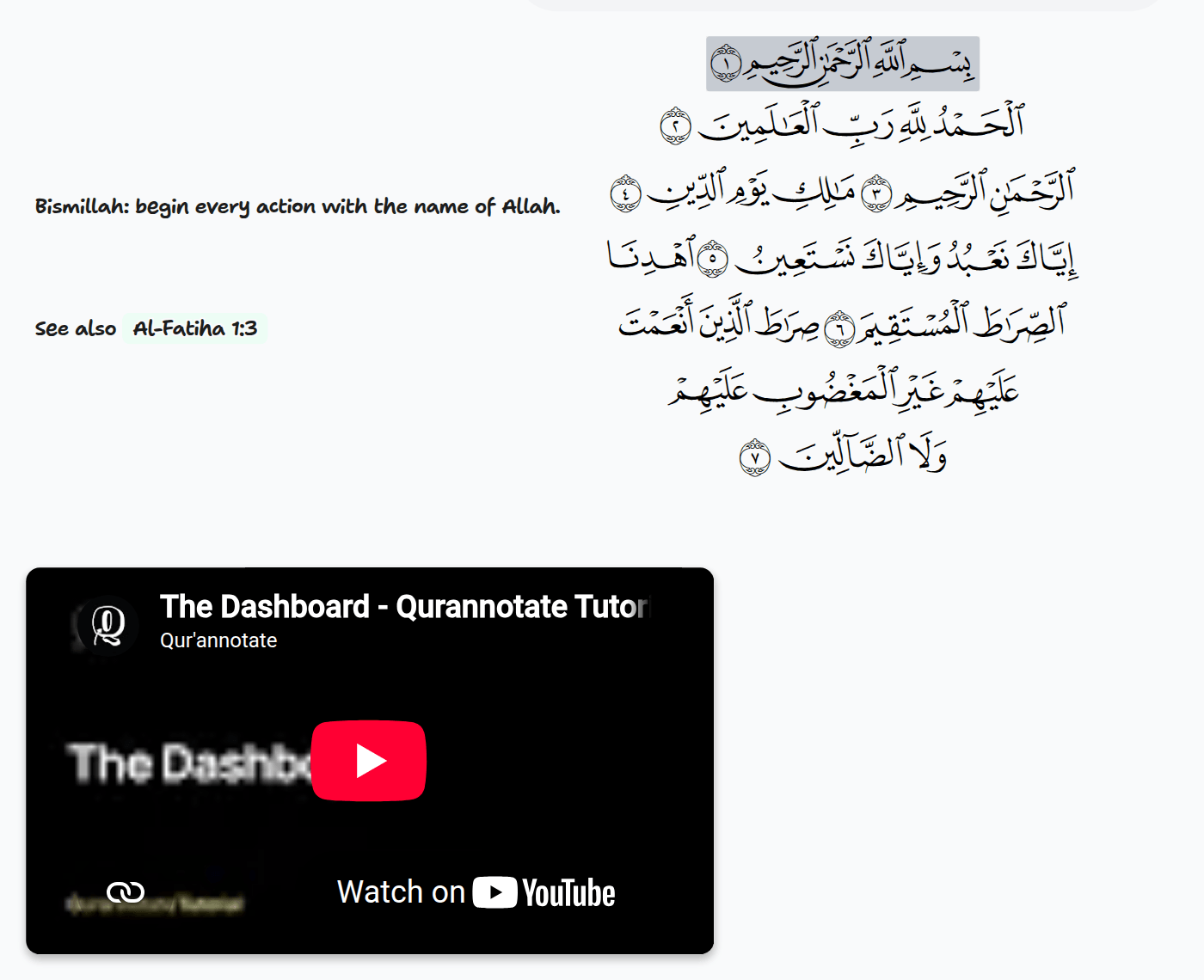
This works on a canvas (a Qur'an note or a Canvas notebook page) and in a Document, where the video sits between your paragraphs.
The video streams from YouTube and needs an internet connection to play — it is not downloaded into your notebook. To turn a lecture into written notes instead, use the Lecture tab in the AI Study Assistant.
Was this helpful?
Ready to annotate the Qurʼān?
Qurannotate is free to start — no sign-up required on web.