Resetting your password
Forgot your password? Reset it from the sign-in screen in a few steps.
Last updated 27 September 2026
Reset your password
On the sign-in screen, tap Forgot your password?
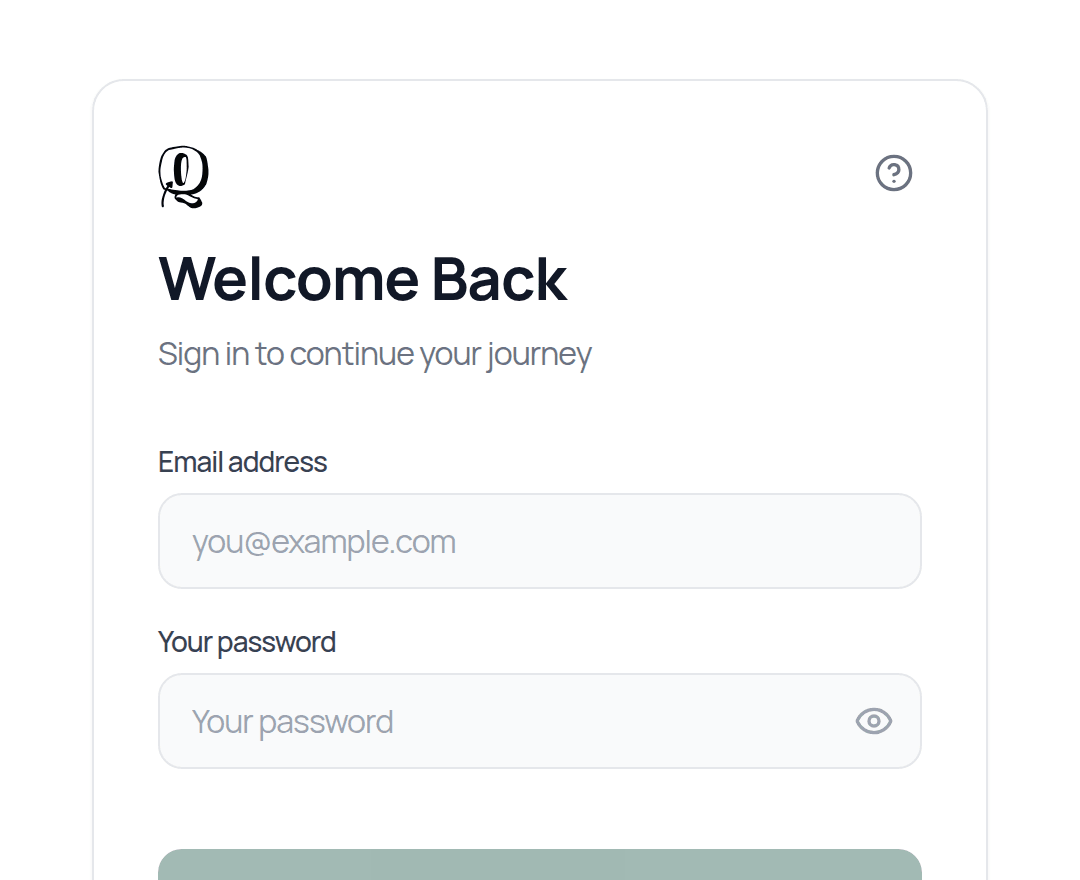
Enter your email address and tap Send Reset Link. On the website you may need to complete a quick security check (CAPTCHA) first. You'll see a message that reset instructions have been sent.
Open the email titled Reset Your Password (check junk/spam too) and click Continue Password Reset.
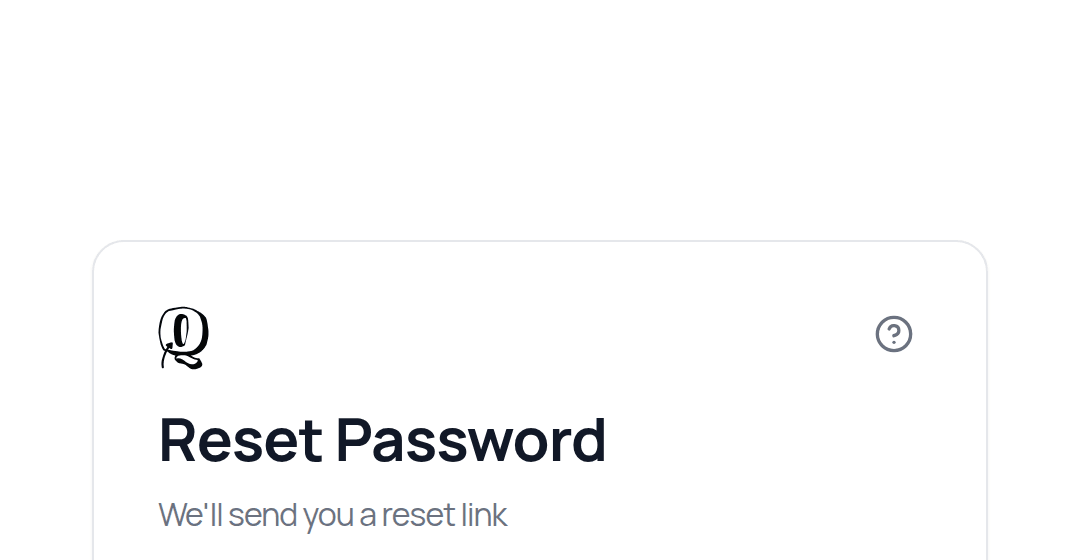
On the Reset Password screen, tap Continue Password Reset.
On Set New Password, enter your New password and Confirm new password, then tap Update Password.
You'll see Password updated successfully! and go to your dashboard.
Your new password must be at least 8 characters, with an uppercase letter, a lowercase letter, a number and a symbol.
Good to know
- —The reset link expires after 1 hour and works only once. If it says Reset link is invalid or has expired, request a new one.
- —On a phone or tablet the reset link may open in your web browser rather than the app. That's fine: finish the steps in the browser, then sign in to the app with your new password.
- —If you use the desktop app and the link doesn't take you to the Set New Password screen, request the reset from the web app at app.qurannotate.com and finish it in your browser. Your new password then works everywhere.
- —If you signed up with Google, Apple or Quran Foundation, you don't need a password. Use that button to sign in.
Changing your password while signed in
There is no separate "change password" option in Settings. To change your password, sign out and use Forgot your password? as above.
Not getting the email after a few minutes, even in spam? Contact salam@qurannotate.com from the email address on your account.
Related Articles
Was this helpful?
Ready to annotate the Qurʼān?
Qurannotate is free to start — no sign-up required on web.