Adding Typed Text
Type clean notes with free or fixed-width text boxes.
TL;DR
The Text tool (T) lets you type instead of writing by hand, using either a free box that grows as you type or a fixed-width box you drag out first. A formatting toolbar appears while editing for font, size, colour, bold, italic, underline, and lists.

Use the Text tool (T) in the bottom toolbar when you want to type instead of writing by hand. There are two ways to place a text box.
- —Free — tap once where you want the text, then start typing. The box grows to fit whatever you write. Good for quick labels and short notes.
- —Fixed width — tap and drag to draw a box of a set width first. Your text then wraps inside that width and the box keeps its shape. Good for neat, structured paragraphs.
While you are editing, a formatting toolbar appears so you can change the font, size, and colour, make text bold, italic, or underlined, and add lists.
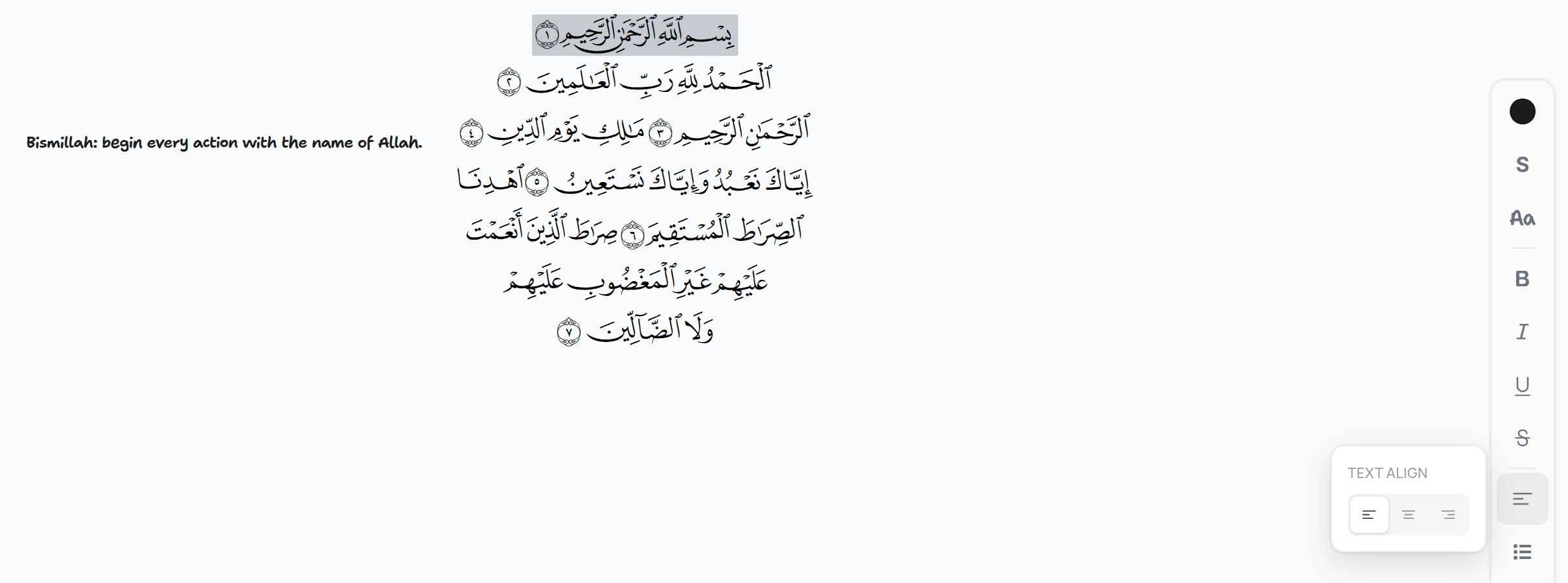
Use a free text box for quick thoughts, and a fixed-width box for tidy, structured study notes.
Related Articles
Was this helpful?
Ready to annotate the Qurʼān?
Qurannotate is free to start — no sign-up required on web.