Slash commands and linking notes
Type / to insert ayat, hadith and honourifics, and link notes together.
Last updated 27 September 2026
In a text box on a Qur'an note or a Canvas notebook page, type / to open the slash menu. Use ↑/↓ to choose and Enter to insert, or Esc to close.
(Documents have their own / menu with Link to annotation or page, Search Ayah, Search Hadith and honourifics. See "Writing in Document notebooks".)
Insert Qur'an verses
- —
/2:255inserts one verse - —
/2:255-257inserts a range of verses - —
/112inserts a whole surah - —
/ikhlasor/rahman:2-10uses surah names
Each inserts the Arabic plus a translation. If a verse can't be found you'll see "Ayah not found".
Insert hadith
Type the collection and number, for example /bukhari:1 or /muslim:1. About 20 collections are supported, including Bukhari, Muslim, Abu Dawud, Tirmidhi, Nasa'i, Ibn Majah, Malik, Riyad as-Salihin, Nawawi's 40 and more. The narrator, text and Arabic are inserted. Hadith need an internet connection.
Insert honourifics
/pbuh (or /saw), /swt, /ra, /rh, /as. Pick the item from the menu to insert the symbol (for example ﷺ). Typing the word alone doesn't replace it automatically.
Just a /
Typing / on its own shows: Link to annotation or page, Search Ayah, Search Hadith, and the honourifics.
Linking notes together
Links let you jump from one note to another verse, page, note or notebook.
Two ways to add a link:
- —Type
/link 2:20and choose Link to … to link straight to Surah 2, verse 20. - —Type
/linkand choose Browse your annotations..., or use Insert > Link to annotation or page, to open the link picker. Search, filter by Verse, Word, Surah, Page or Notebook, and pick one. You can search across all your mushafs. The picker shows notes you've already written plus your notebooks and pages.
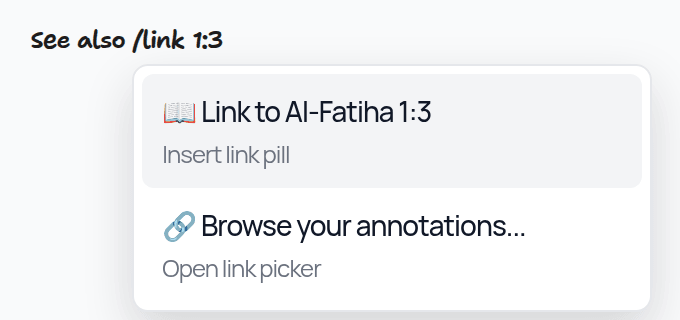
What links look like:
- —a green 📖 pill for Qur'an places
- —a blue 📓 pill for notebooks
- —a grey crossed-out pill if the target no longer exists
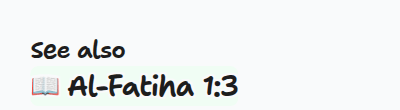
Following a link: tap the pill (not while drawing). A ← Back to … bar appears so you can return to where you were.
Links only go one way. The linked note doesn't list the notes that link to it.
Related Articles
Was this helpful?
Ready to annotate the Qurʼān?
Qurannotate is free to start — no sign-up required on web.