Reading, moving between pages, search and bookmarks
Move between pages, jump to a surah or verse, search, and bookmark.
Last updated 27 September 2026
Turning pages
- —Arrow buttons in the header. Pages run right to left like a printed mushaf: the left arrow goes to the next page and the right arrow to the previous page.
- —Keyboard: Left arrow = next page, Right arrow = previous page (not while you're typing in a text box).
- —Swipe (phones and the mobile apps): swipe right for the next page and left for the previous page.
Jumping to a surah, verse or page
- —Inside a mushaf: tap the search button or the surah name in the header. A panel opens with a search box ("Search surah, page, or translation...") and a two-column picker: choose a surah on the left and a verse on the right.
- —From the dashboard: tap the search icon to open Explore the Quran. Use the Surah, Juz or Page tabs, or type in the search box.
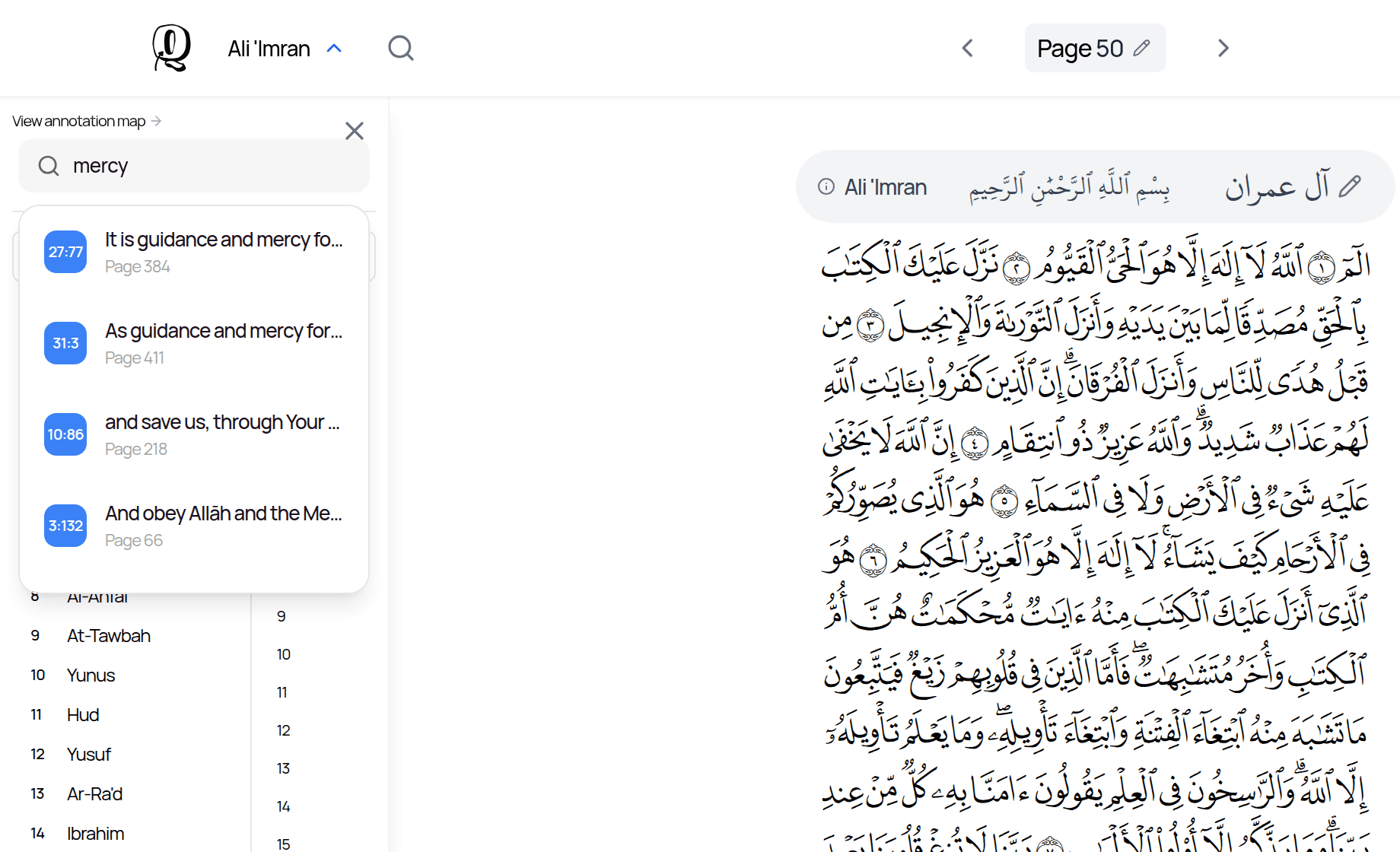
What search finds
You can search by:
- —surah name or number (e.g. "Baqarah", "2")
- —page number
- —verse reference (e.g. "2:255")
- —English translation text (3 or more letters)
Results from Quran Foundation's search also appear under Quran Foundation Results.
Search does not look through your own notes. To find notes you've written, use the Annotation Map (see "Annotating the Qur'an"), your Bookmarks, or ask the AI Study Assistant to search your notes.
Bookmarks
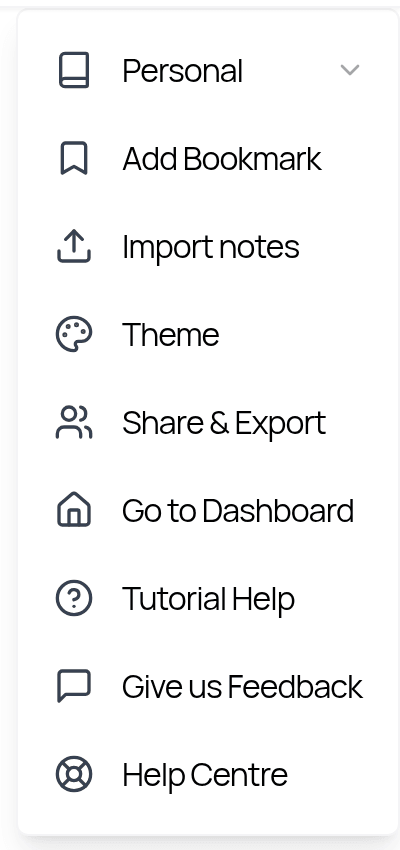
- —Bookmark a page: open the header More actions menu and tap Add Bookmark (or Remove Bookmark).
- —Bookmark while annotating: inside a note, use Add bookmark to bookmark that verse, word, surah or page.
- —See your bookmarks: the Bookmarks section on the dashboard, then View all. The Bookmarks page lets you search, filter by surah and sort (Newest First, Oldest First, Surah Order, Page Number).
- —If you've connected a Quran Foundation account, your Quran.com bookmarks can sync too (see "Connecting Quran Foundation").
Picking up where you left off
Each mushaf reopens at the page you last read, on any device. The dashboard's Recent Annotations list shows the last page you were on in each mushaf.
Zoom and text size
- —Desktop app: use View > Zoom In / Zoom Out / Reset Zoom (this zooms the whole window).
- —Web browser: use your browser's zoom (Ctrl/Cmd + and −).
- —Inside an annotation canvas you can pinch or scroll to zoom the canvas.
- —Document pages in notebooks have their own zoom control.
Related Articles
Was this helpful?
Ready to annotate the Qurʼān?
Qurannotate is free to start — no sign-up required on web.