Making a New Mushaf or Notebook
Create a new Qur'an mushaf or a blank notebook in three quick steps.
TL;DR
The New Mushaf card opens a three-step wizard: choose a type (Qur'an, Notebook, or Import), pick a script or format, then name it, add a colour, and tap Create Notebook. The new mushaf or notebook appears as a card on your dashboard, and you can keep up to 10.
Last updated 27 September 2026

Everything starts from the dashboard. To begin something new, tap the New Mushaf card (the card with a +). A short wizard walks you through three steps.
Step 1 — Choose the type
- —Qur'an — annotate directly on the Qur'an's verses.
- —Notebook — a plain canvas or document for your own free notes.
- —Import — start a notebook from a PDF, images, or a Word or PowerPoint file.
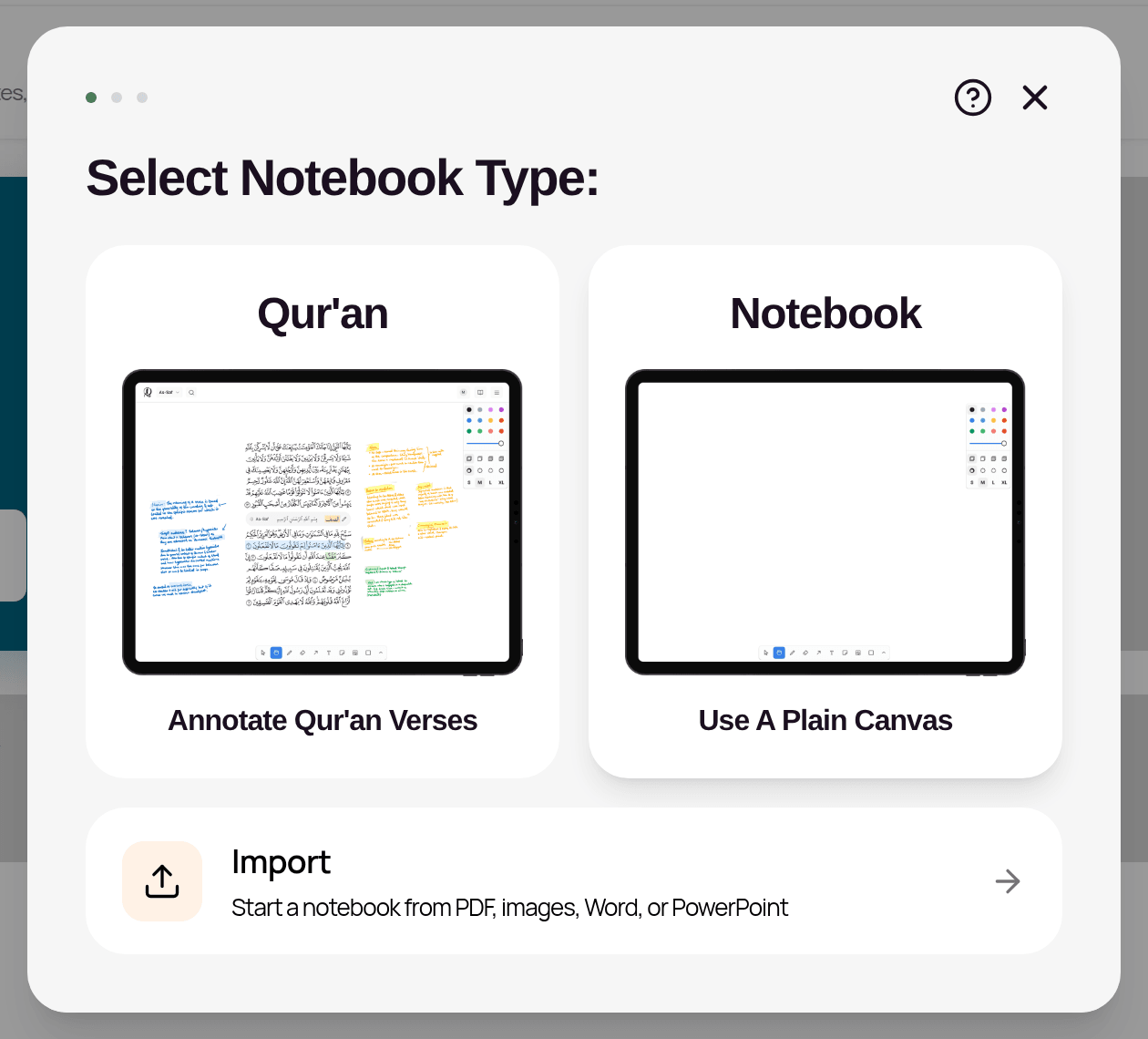
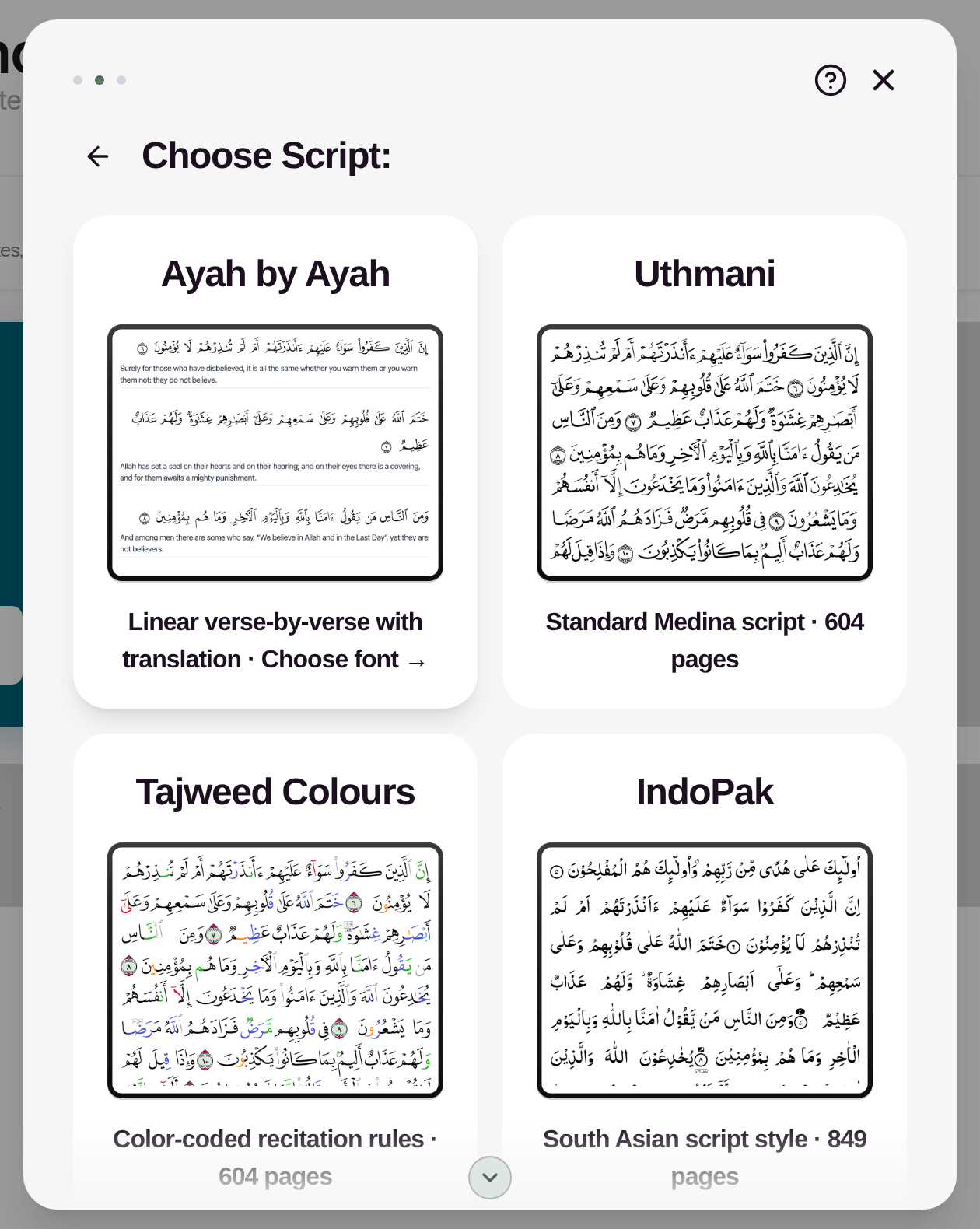
Step 2 — Choose the style
If you chose Qur'an, pick a script: Ayah by Ayah, Uthmani, Tajweed Colours, IndoPak, Traceable, or Word by Word. Ayah by Ayah also lets you choose a translation. Word by Word has an Include transliteration option instead.
If you chose Notebook, pick a format: Canvas (freeform drawing and notes), Document (rich text with inline drawing), Templates (pre-built study layouts), or Journal Pack (themed multi-page journals).
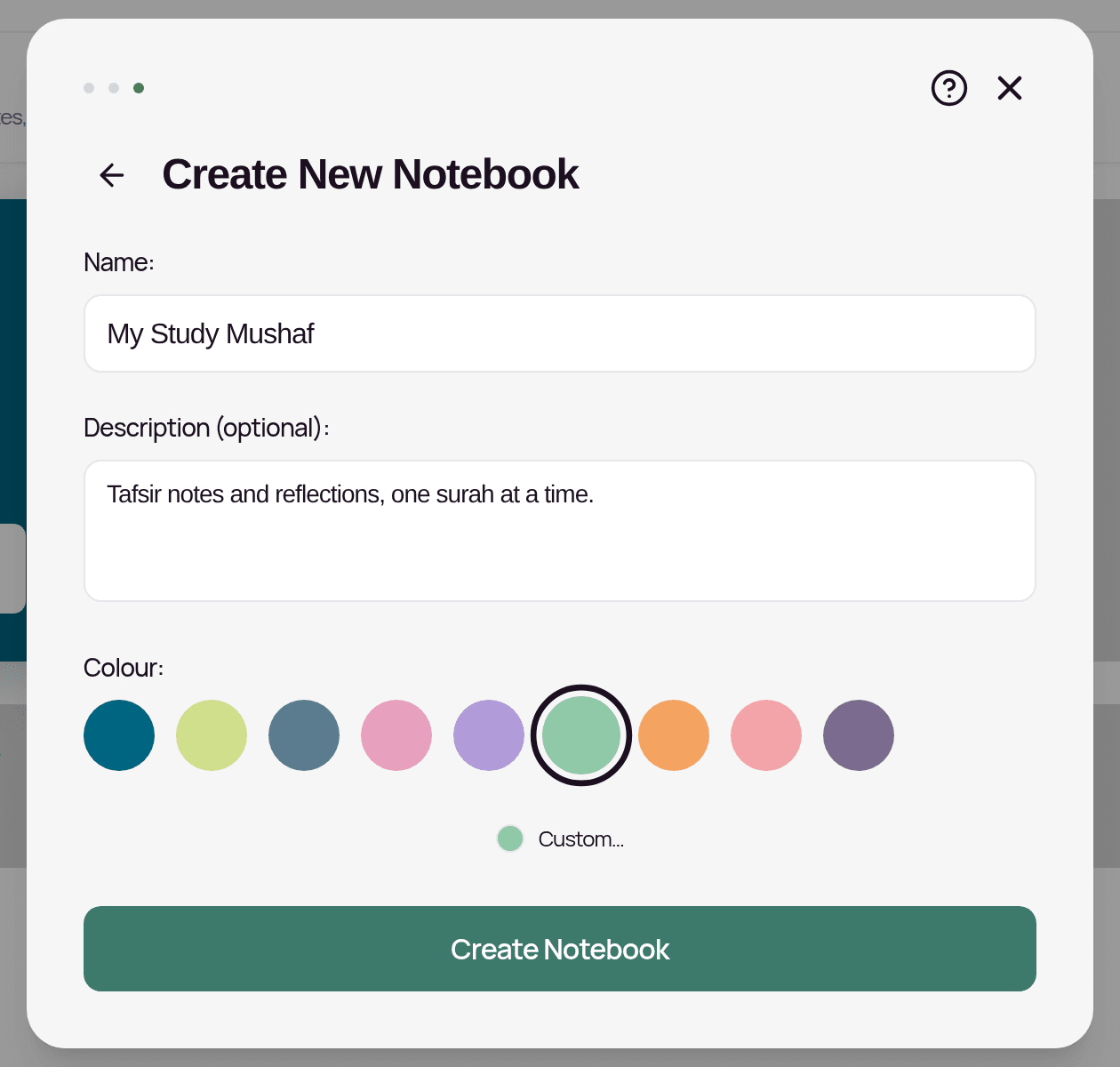
Step 3 — Name and finish
Give your mushaf or notebook a name, add an optional description, pick a card colour, then tap Create Notebook. It appears as a new card on your dashboard. Tap it to open it. (If you chose Import, it opens straight away and starts importing.)
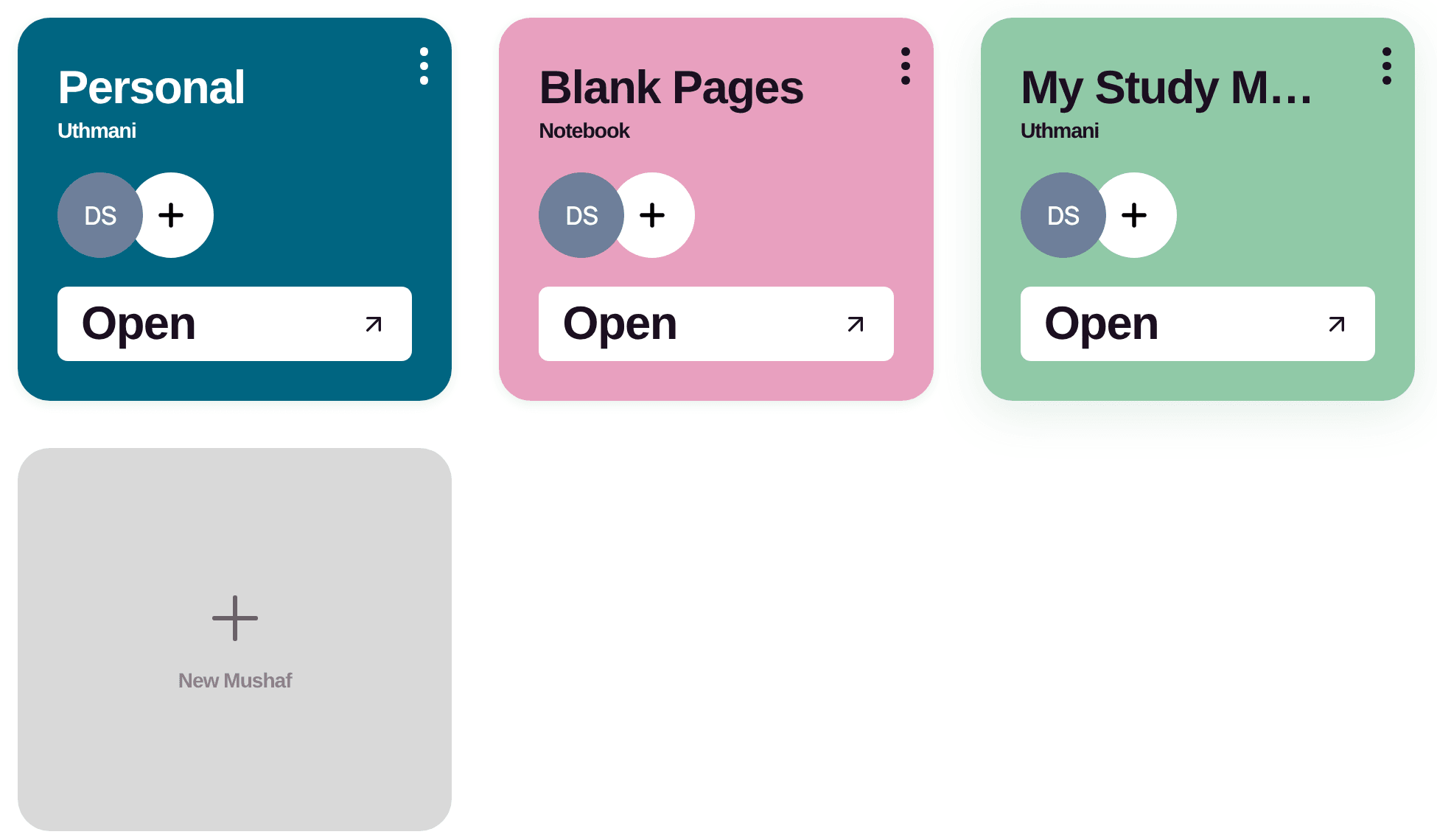
Give each one a clear, specific name. You can create up to 10, so naming them well keeps your dashboard easy to navigate.
Related Articles
Was this helpful?
Ready to annotate the Qurʼān?
Qurannotate is free to start — no sign-up required on web.