Troubleshooting common problems
Quick fixes for sign-in, syncing, audio, export and performance problems.
Last updated 27 September 2026
Start with these quick fixes. They solve most problems:
Update to the latest version of the app (App Store, Google Play, or the desktop app). On the web, refresh the page once you're online.
Check your internet connection. AI, audio, translations, sharing and syncing need it.
Close and reopen the app.
Make sure you're signed in to the right account (Settings > Account shows your email).
The app crashes or shows an error screen
- —"Couldn't load the app": tap Return to dashboard. The message confirms your work is safe. Then reopen what you were doing.
- —"Could not start Qurannotate": tap Reload. On Android, also update Android System WebView and Chrome from the Play Store, then try again.
- —"Qurannotate needs a moment" (the app restarted several times): tap Try again.
- —Desktop app window crashed: use Reload Qurannotate if offered.
If it keeps happening, email us with your device model, operating system version, app version, and what you tapped just before the crash.
The app is slow
- —Very large notes (lots of images, imported PDF pages or long handwriting) take longer to open. Splitting big notebooks into several pages or notebooks helps.
- —Close other apps and browser tabs.
- —Update the app, and on Android update Android System WebView and Chrome.
I can't sign in
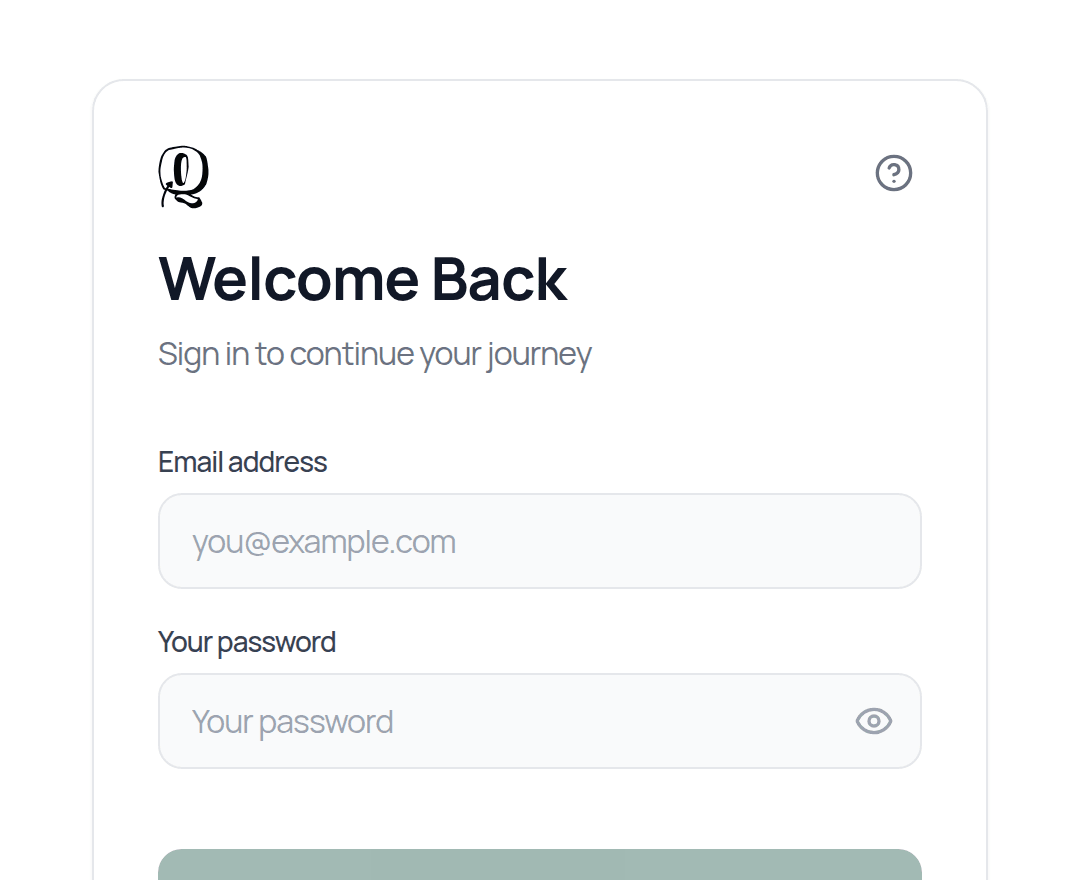
- —Use the same method you signed up with (email, Google, Apple or Quran Foundation). Apple sign-in isn't available in the Android app. If you used Apple, sign in on the web or another device.
- —Wrong password? Use Forgot your password? (see "Resetting your password").
- —"Please confirm your email address" means you need to click the link in your verification email (check spam).
- —"Too many failed attempts" means you should wait 15 minutes or reset your password.
My notes aren't syncing or are missing

See "Offline use and sync". In short: get online, tap any Failed or "need attention" message and choose Retry, and check both devices use the same account. Don't sign out while changes are waiting to sync.
Audio won't play
Check your connection and volume, close the audio player and tap the speaker again, or try another reciter. See "Listening to recitation".
An export is blank or missing things
Update the app, stay online, and let the export finish without leaving the screen. If a PDF is still blank, send us the mushaf name and your device.
Apple Pencil or finger problems (iPhone/iPad)
- —My finger won't draw: once you've used the Pencil, drawing tools only respond to the Pencil (palm rejection). Draw with the Pencil, or close and reopen the note.
- —My finger moves things instead of drawing: check which tool is selected. Select and Pan move things, Pen draws.
- —Double-tap doesn't switch to eraser: make sure your Pencil model supports double-tap and that it's enabled in iPad Settings > Apple Pencil.
- —Nothing happens when I tap: check the selected tool first. Most "it isn't working" moments are the wrong tool.
Microphone / lecture transcription isn't working
Allow microphone access for Qurannotate (or your browser) in your device settings, then start again. For "System audio" in a browser, choose a screen or tab and turn on Share audio. Make sure you have enough AI credits.
I paid but still see the upgrade screen
- —In the iPhone/iPad or Android app, tap Restore Purchases.
- —If you paid on the web, sign in with the same email. In the iPhone/iPad app, tap I Already Have a Subscription if you see it.
- —Otherwise email us with your account email and when you paid.
I can't create a new mushaf
You can have up to 10 mushafs and notebooks. Delete or leave one to make room (see "Creating and managing mushafs").
An invite or share link isn't working
The person you invite needs a Qurannotate account with that exact email, and must accept on their Friends page. For links, check General access is set to Anyone with the link.
Still stuck?
Email salam@qurannotate.com with:
- —your account email,
- —your device and operating system (e.g. iPad Air, iPadOS 18; Windows 11; Chrome on Mac),
- —the app version,
- —what you did, what happened, and what you expected,
- —a screenshot if you can.
You can also send a message from inside the app (see "Contacting support and sending feedback").
Related Articles
Was this helpful?
Ready to annotate the Qurʼān?
Qurannotate is free to start — no sign-up required on web.