Sharing and live collaboration
Share a mushaf with a link, control who can edit, and collaborate live.
Last updated 27 September 2026
Opening Share & Export
- —Inside a mushaf or notebook: More actions > Share & Export.
- —On the dashboard: a card's ⋮ menu > Share & Export, or the + (Invite collaborator) button on the card.
The window has two tabs: Export notes (see "Exporting your notes") and Share access. Only the owner can change sharing.
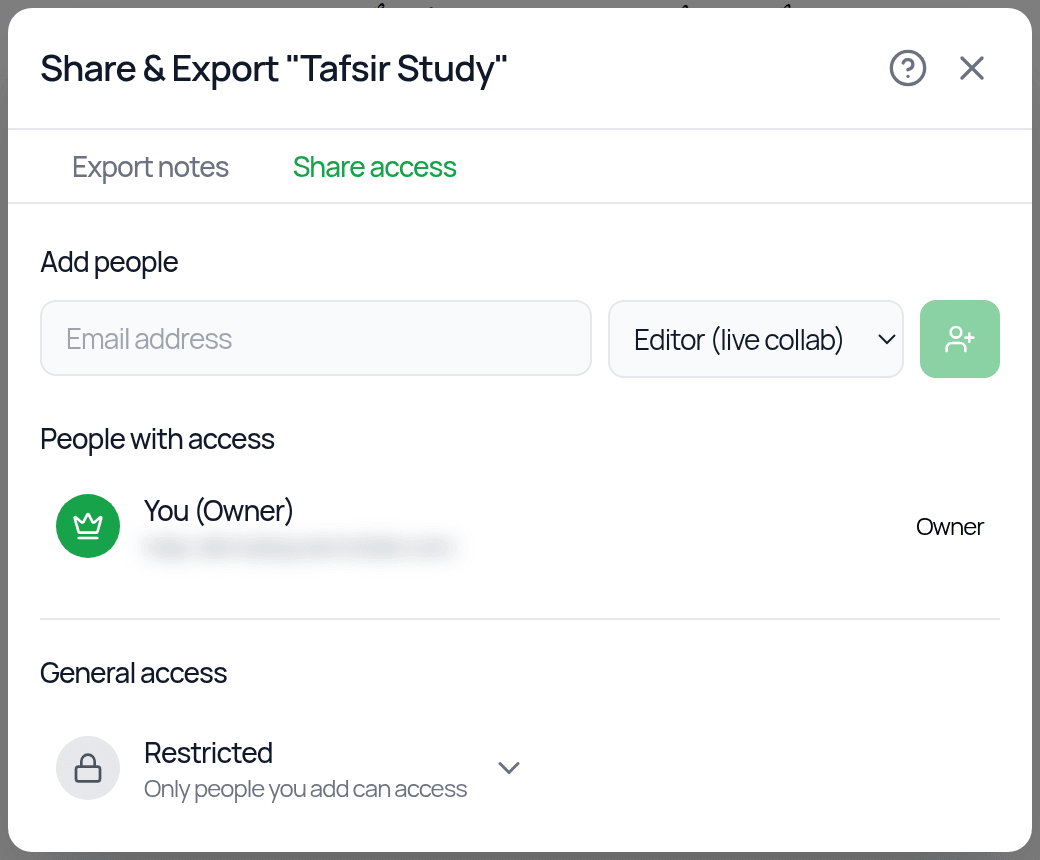
Two roles
- —Editor (live collab): can edit with you in real time.
- —Viewer (copy only): can view your notes and copy them into their own mushafs, but can't change yours.
Invite specific people
In Share access, under Add people, type their Email address.
Choose Editor (live collab) or Viewer (copy only), then tap the add button.
They appear under People with access as Pending until they accept.
The person needs a Qurannotate account with that email. They accept the invite on the Friends page under Requests. You can add up to 30 people.
Share with a link
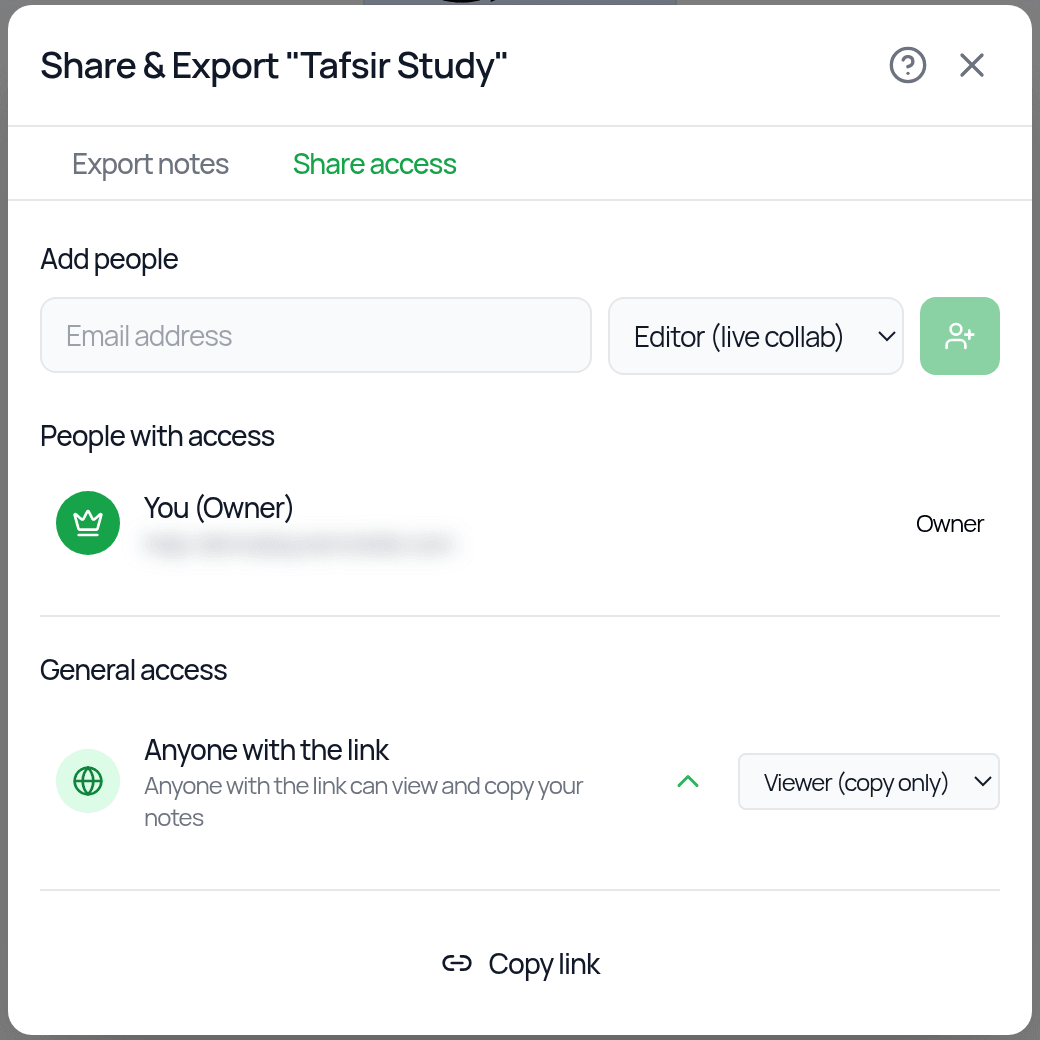
Under General access, switch from Restricted (only people you add) to Anyone with the link. Choose whether the link gives Viewer or Editor access, then tap Copy link.
- —Viewer link: anyone with it can view and copy your notes. They don't need an account to view. People who aren't signed in see Sign in to save your own copy. Signed-in viewers see a View only bar where they can Add it to their dashboard or copy your notes into one of their own mushafs.
- —Editor link: anyone signed in who opens it becomes an editor straight away. Share it carefully.
Change or stop sharing
- —Change someone's role with the dropdown next to their name.
- —Remove someone with the trash icon (click again to confirm).
- —To turn off link sharing, switch General access back to Restricted.
Leaving a shared mushaf
On the dashboard, open the card's ⋮ menu and choose Leave. You lose access, and the owner can re-invite you later.
Live collaboration
When editors are working together you'll see:
- —each person's coloured cursor with their name on the canvas,
- —their avatars in the header,
- —a connection status (Connecting, Connected, Synced). If it shows Connection error, tap Retry.
On the Qur'an page, you'll see who is editing which verse or viewing which page.
Document pages in a shared notebook can also be edited live.
Cursor chat: on a shared canvas with a mouse and keyboard, press / to type a short message next to your cursor, then Enter to send (Esc to close). It isn't available on touch-only devices.
Sharing a single note
Inside a note, Share / Export can create a link to just that note. Recipients see it with the option to Save to My Quran. If a link has stopped working, you'll see "Share Link Expired" or "Share Not Found".
Reporting shared content
If someone shares something inappropriate with you, use Report on the shared page, or email salam@qurannotate.com with the link.
Related Articles
Was this helpful?
Ready to annotate the Qurʼān?
Qurannotate is free to start — no sign-up required on web.