Settings, dark mode, highlight colours and language
Theme and dark mode, highlight colours, and language settings.
Last updated 27 September 2026
Opening Settings
- —Desktop/tablet: Settings in the left sidebar (or click your profile picture).
- —Phones: Profile in the bottom bar.
The tabs are:
- —Theme
- —Account: profile, privacy settings, Quran Foundation, billing link, sign out, delete account
- —Plan: your membership and AI credits
- —Contact: send the team a message
- —Notifications: iPhone/iPad and Android only
Dark mode
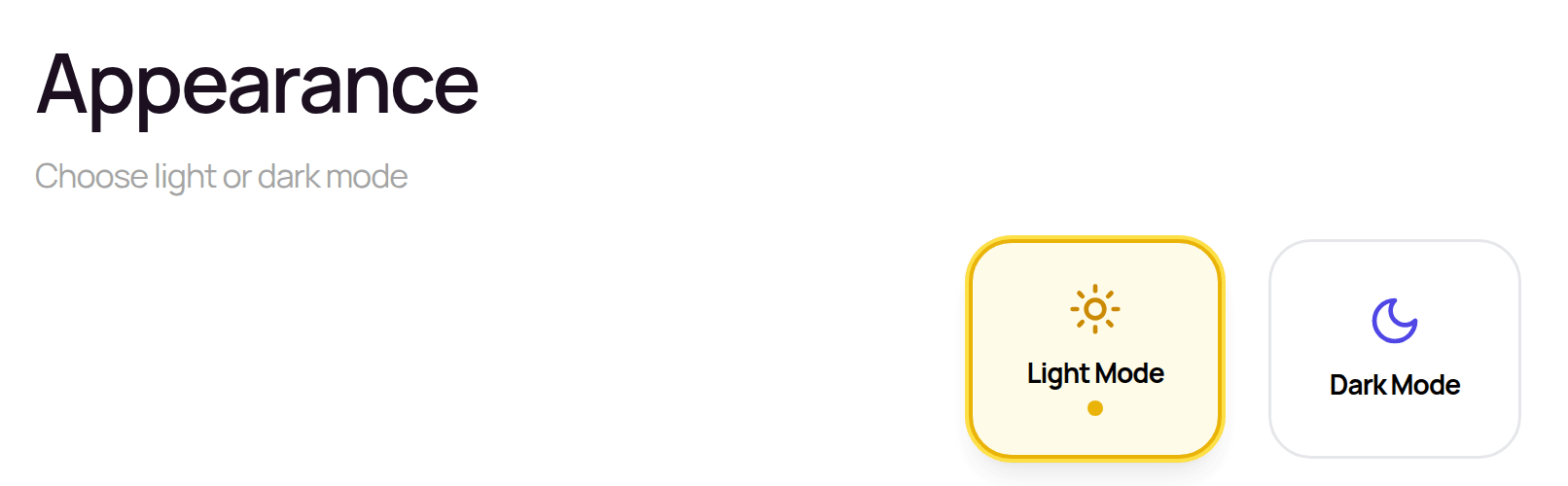
- —Settings > Theme > Appearance: choose Light Mode or Dark Mode.
- —Or, while reading a mushaf: More actions > Theme, then toggle light/dark.
Highlight colours
While reading, open More actions > Theme > Highlight Colors to choose the colours that mark notes on Verses, Words, Surah Headings and Pages.
Privacy settings (Settings > Account)
- —Public Leaderboard Visibility: show or hide your name and annotation count on the public leaderboard.
- —AI Community Learning: allow your annotations to help improve AI answers for other students (shared anonymously), or turn it off.
- —Email about plans and offers: turn marketing emails on or off.
Honourifics
Honourifics are inserted when you choose them: type /pbuh (or /saw, /swt, /ra, /rh, /as) in a text box and pick it from the menu, or use Insert > Honourific. There's no setting that adds them automatically.
App language and Arabic
- —The app's menus and buttons are in English. There's no option to switch the interface language.
- —You can write your notes in Arabic or any language your keyboard supports. Text boxes automatically switch to right-to-left for Arabic paragraphs. Use your device's own Arabic keyboard.
- —Document notebooks include the Arabic fonts Amiri, Scheherazade New and Noto Naskh Arabic.
- —Translations and tafsir are available in many languages (see "Translations, tafsir and word-by-word").
Where script and translation are chosen
Your Qur'an script (Uthmani, IndoPak, etc.) is chosen when you create a mushaf, not in Settings. In the reader, the translation shown in the side panel is chosen with Select Translation.
Related Articles
Was this helpful?
Ready to annotate the Qurʼān?
Qurannotate is free to start — no sign-up required on web.