Notebooks, pages, folders, templates and journal packs
Organise notebooks with pages and folders, and use templates and journal packs.
Last updated 27 September 2026
A Notebook is a mushaf-sized home for your own notes. Inside it you keep notebooks (listed in the left sidebar under Pages), grouped in folders if you like. A Canvas notebook can hold many pages.
The sidebar
Open the sidebar with the chevron in the notebook header (Show pages / Show notebooks). On phones and tablets it's hidden until you open it.
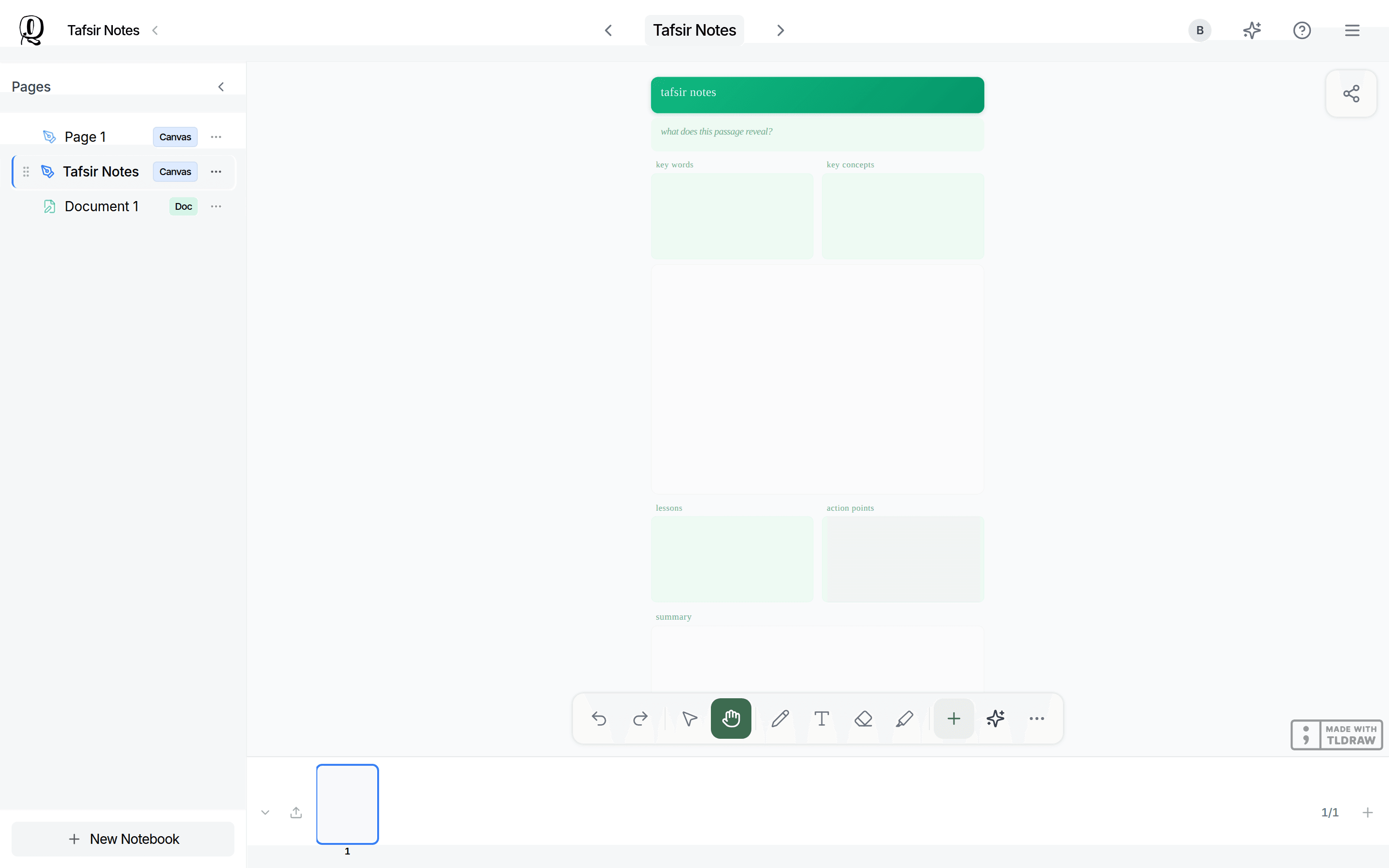
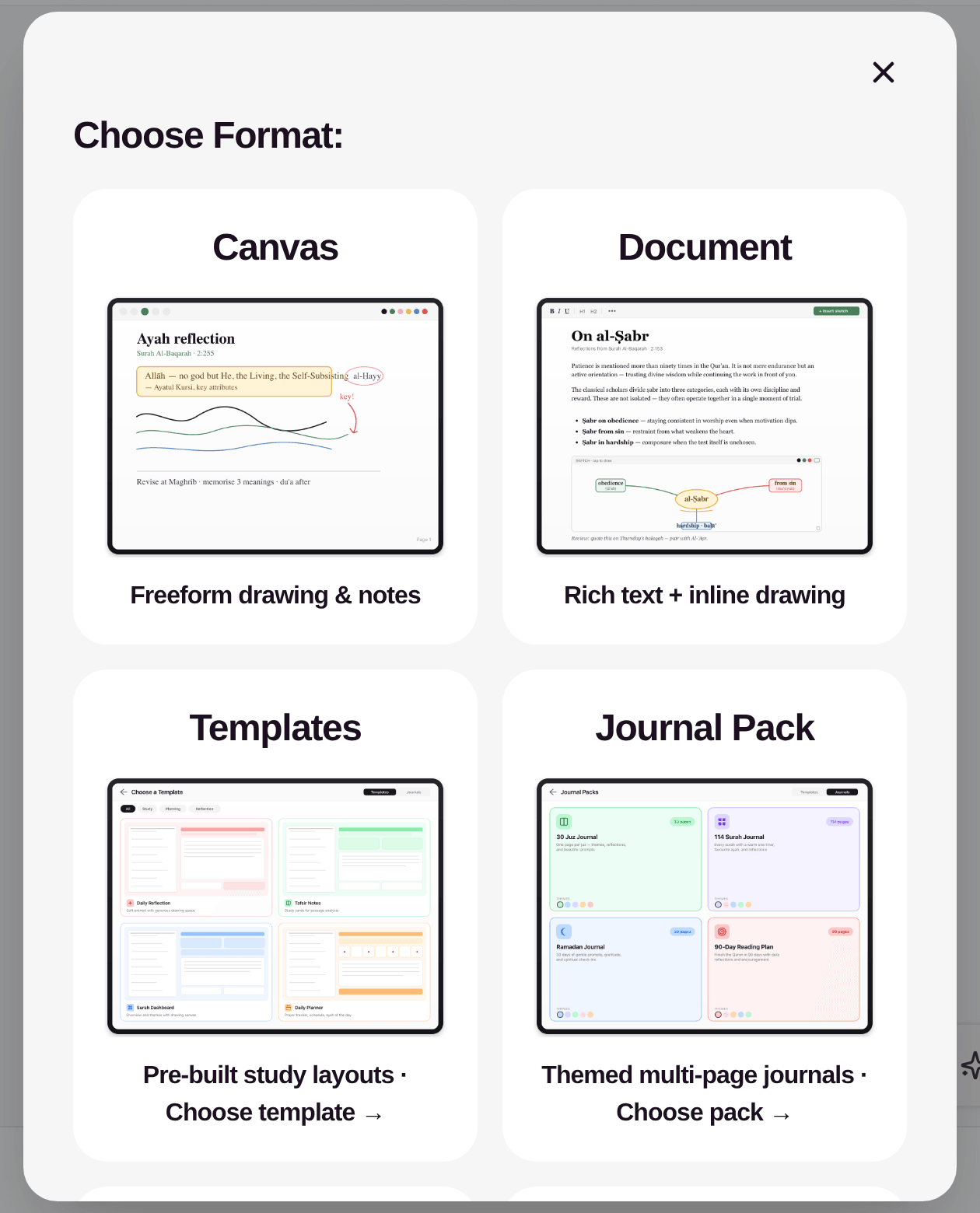
- —New Notebook adds something new. Choose Canvas, Document, Templates, Journal Pack, Import File or Folder.
- —Tap a notebook to open it.
- —Use a notebook's More options menu to Rename or Delete it. Deleting cannot be undone.
- —Drag and drop to reorder notebooks or move them into folders.
Folders
- —Create one with New Notebook > Folder.
- —A folder's ⋯ menu has New Notebook, New Folder (one level of sub-folders), Rename, Move to Root (for sub-folders) and Delete.
- —Deleting a folder doesn't delete the notes inside. They move to Unfiled.
Pages in a Canvas notebook
- —Desktop: the strip along the bottom has Add page, Delete current page, Import file, View all pages (Ctrl+G) and Show/Hide thumbnails.
- —Phones: when a notebook has 2 or more pages, a page strip appears at the top. Long-press it, or use Open page grid in the header, to see all pages.
- —Page grid: jump to a page (Go to), add a page, drag to reorder, or tap × to delete a page.
- —A notebook's only page can't be deleted.
- —New pages are portrait. There's no paper size setting; landscape pages come from imported files.
Templates
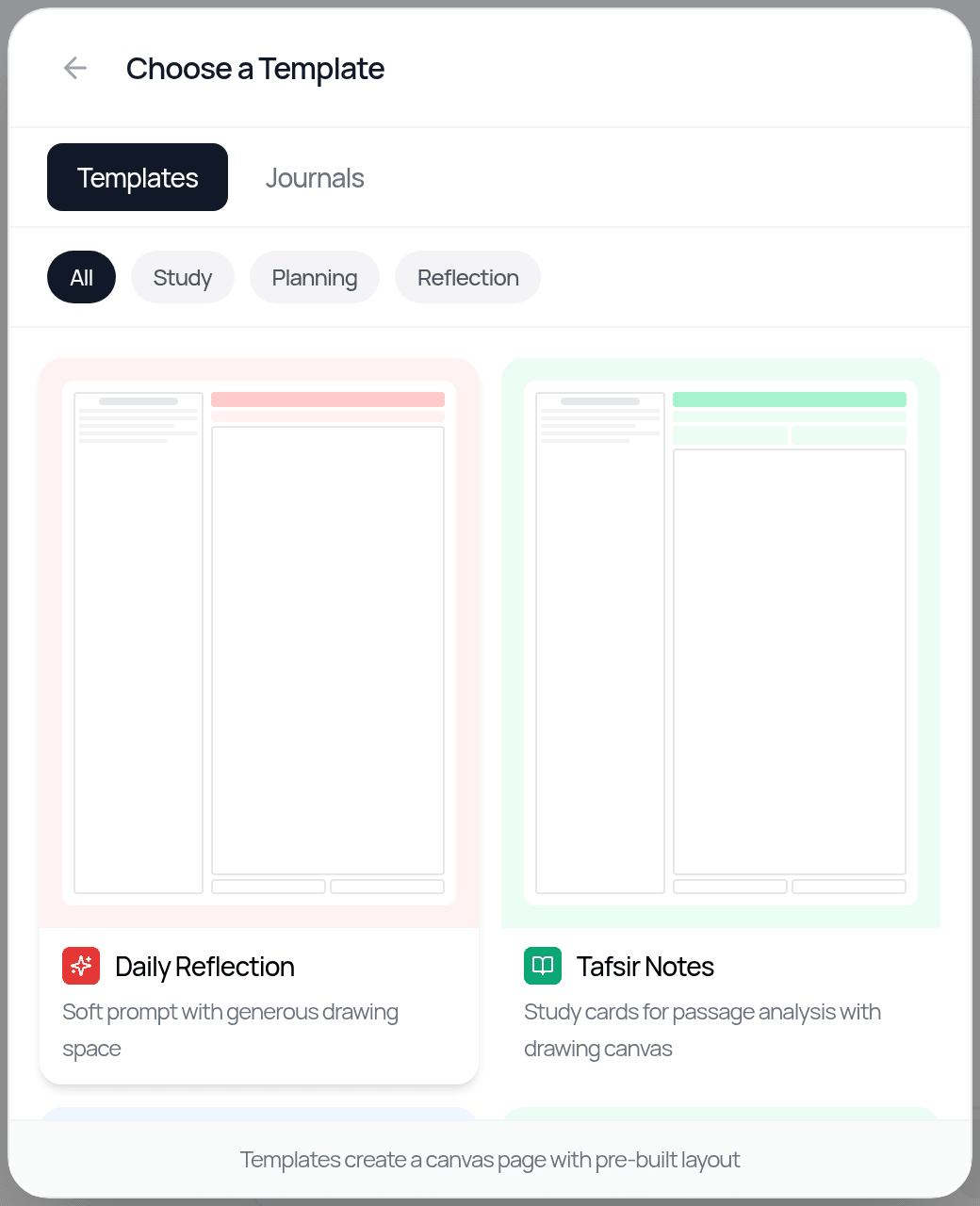
Templates are ready-made study layouts, made of normal editable text and shapes:
- —Study: Tafsir Notes, Surah Dashboard, Ayah Worksheet, Theme Deep Dive, Uloom al-Surah
- —Reflection: Daily Reflection
- —Planning: Daily Planner, Weekly Planner
After picking a template, choose a colour theme (Rose, Lavender, Sky, Sage or Sunshine).
Add a template as:
- —a new notebook from the dashboard (New Mushaf > Notebook > Templates),
- —a new notebook inside an existing Notebook (New Notebook > Templates), or
- —content dropped onto any canvas (Insert > Template).
Once placed, edit, move or delete any part of it. You can't save your own custom templates.
Journal packs
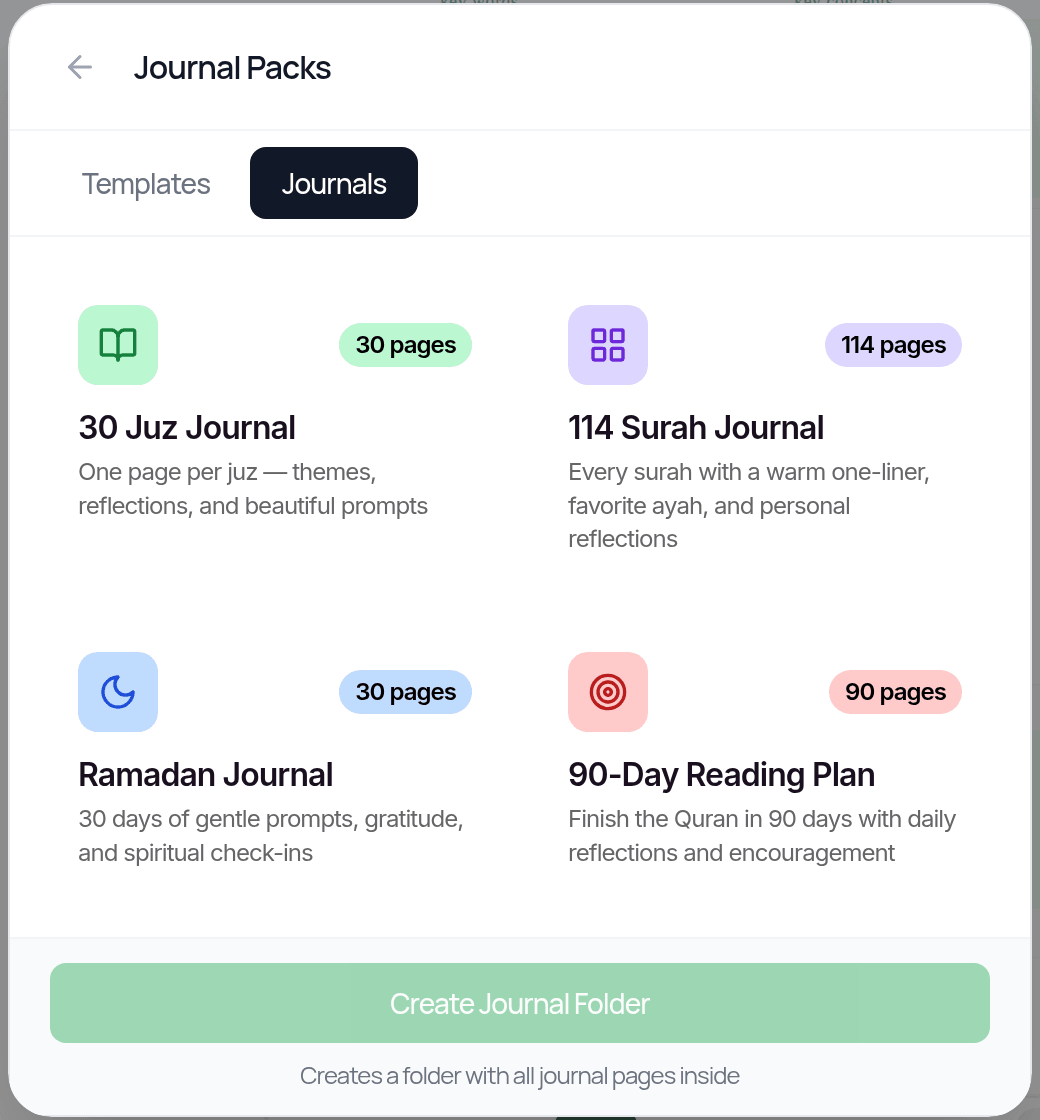
Journal packs create a whole set of pages in one go:
- —30 Juz Journal: 30 pages
- —114 Surah Journal: 114 pages
- —Ramadan Journal: 30 pages
- —90-Day Reading Plan: 90 pages
Choose a pack and a colour theme. Qurannotate creates a folder named after the pack with all the pages inside. You'll see progress while it builds ("Creating journal…" or "Creating pages…"). Keep the app open until it finishes.
Document notebooks
See "Writing in Document notebooks".
Recovering deleted items
There's no trash or version history for notebooks, pages or folders. Deleting is permanent, so export anything you might want to keep first.
Related Articles
Was this helpful?
Ready to annotate the Qurʼān?
Qurannotate is free to start — no sign-up required on web.