Exporting your notes (PDF, Word, image)
Export your notes as a PDF with your handwriting plus a Word document, or as an image.
Last updated 27 September 2026
Export a whole mushaf (PDF + Word)
Open the mushaf, then More actions > Share & Export (or use Share & Export from the card's ⋮ menu on the dashboard).
Choose the Export notes tab.
Choose PDF + DOCX.
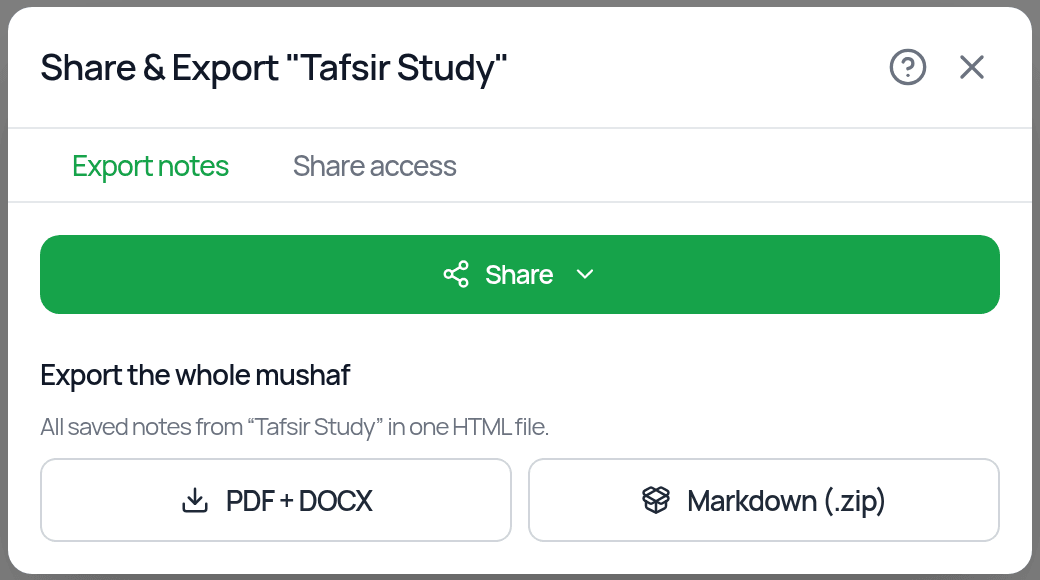
Wait while it builds. You'll see progress such as "Step 2 of 7".
You get a PDF with your handwriting and drawings, plus a Word (.docx) companion of your notes.
The other option, Markdown (.zip), is a ZIP of Markdown files with a manifest. It's useful for backing up notes or bringing them back in with "Import notes".
Export a single note
Inside a note, tap Share / Export. You get a preview of the note and can:
- —Web: download it as a PNG image, or share to WhatsApp, X, Facebook, Instagram or More.
- —iPhone/iPad and Android: tap Share to use your device's share sheet.
- —Copy a share link, or Share to Quran Reflect (needs a connected Quran Foundation account).
- —Read the text in the screenshot with Extract all visible text (uses AI credits).
Note: if you choose PDF + DOCX from inside a single note, the PDF covers just that note.
Export from the Annotation Map
Analytics > Annotation Map > Export Annotations lets you choose PDF File, HTML File (open in a browser and print with Ctrl/Cmd+P) or Structured Package. Select a specific mushaf first. It isn't available in the "All Mushafs" view.
Export an older-style document page
Some document pages show an Export menu with Export as Image and Export as PDF (not on phones).
Where does the file go?
- —iPhone/iPad and Android: your share sheet opens. Save to Files, send by email or messages, and so on.
- —Desktop app: a Save dialog lets you choose where to save.
- —Web: the file downloads through your browser (check your Downloads folder).
If an export fails
- —"No annotations to export yet": the mushaf has no notes yet.
- —"PDF export failed. The DOCX was still exported." (or the other way round): one file worked. Try again for the other.
- —Make sure you're online and let the export finish without leaving the screen.
- —If a PDF comes out blank or is missing drawings, update to the latest app version and try again. If it still happens, email salam@qurannotate.com with the mushaf name and your device.
Related Articles
Was this helpful?
Ready to annotate the Qurʼān?
Qurannotate is free to start — no sign-up required on web.