Writing in Document notebooks
Type rich-text notes in a Document: headings, lists, tables, images, ayahs and videos.
Last updated 28 September 2026
A Document is for typed notes: rich text, like a word processor. Create one from the dashboard (New Mushaf > Notebook > Document) or inside a Notebook (New Notebook > Document).
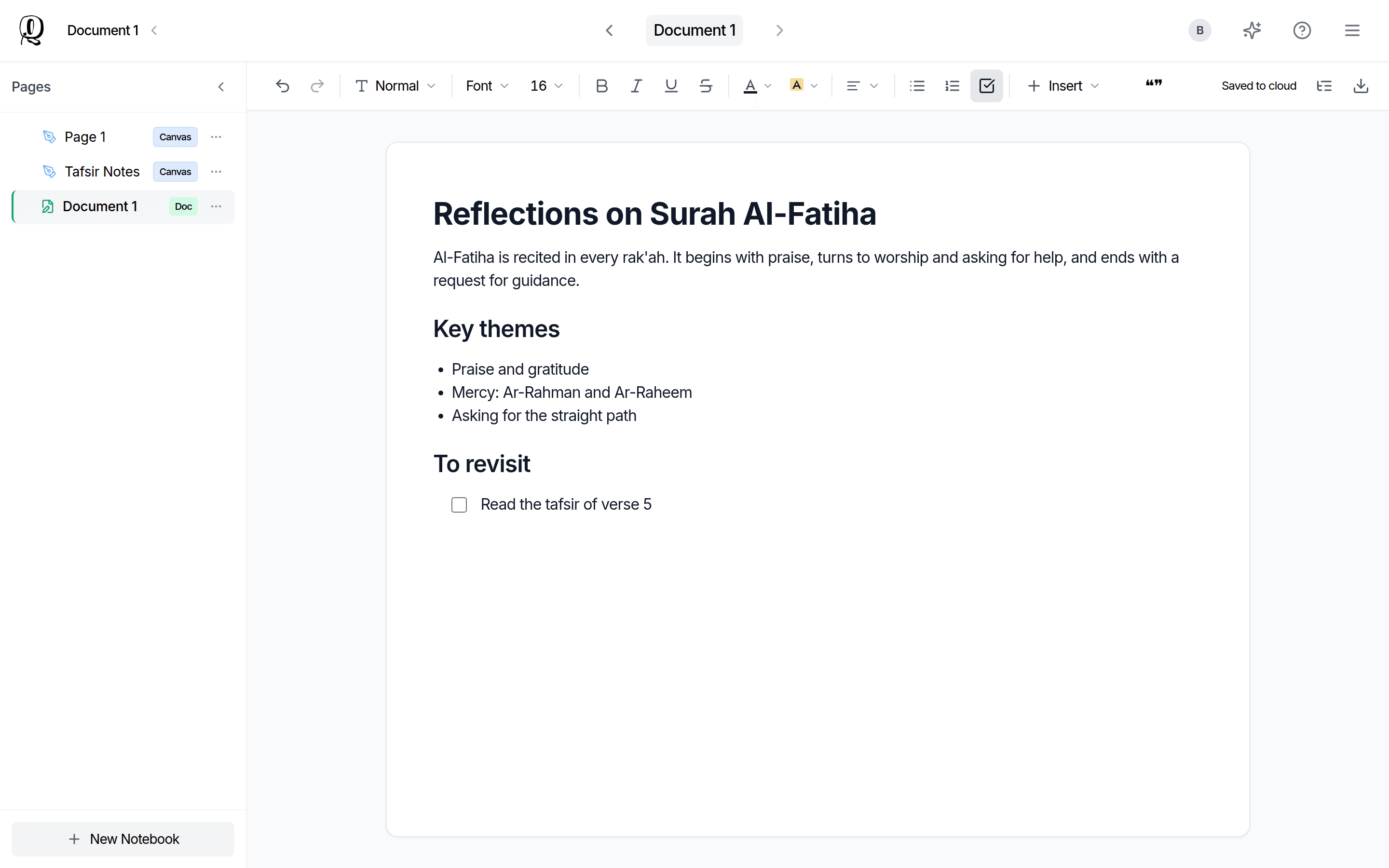
Documents are for typing only. To draw or handwrite, add a Canvas page to the notebook (New Notebook > Canvas) or write in a Qur'an note.
Formatting toolbar
- —Undo, Redo, Bold, *Italic*, Underline, Strikethrough
- —Text style: Normal, Heading 1, Heading 2, Heading 3
- —Fonts, including Arabic fonts Amiri, Scheherazade New and Noto Naskh Arabic, and font size
- —Text colour and highlight
- —Alignment (left, centre, right, justify)
- —Bullet, numbered and task lists
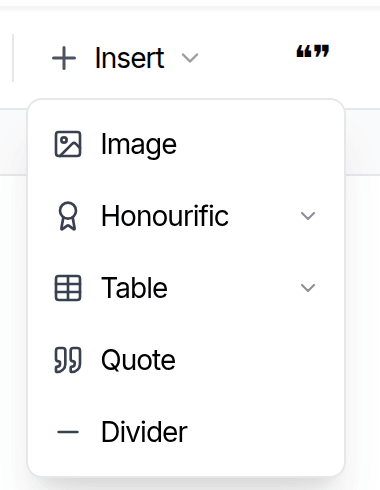
- —Insert: Image, Honourific, Table, Quote and Divider
- —Insert Ayah or Hadith (the quote-mark button): search for a verse or hadith and insert it
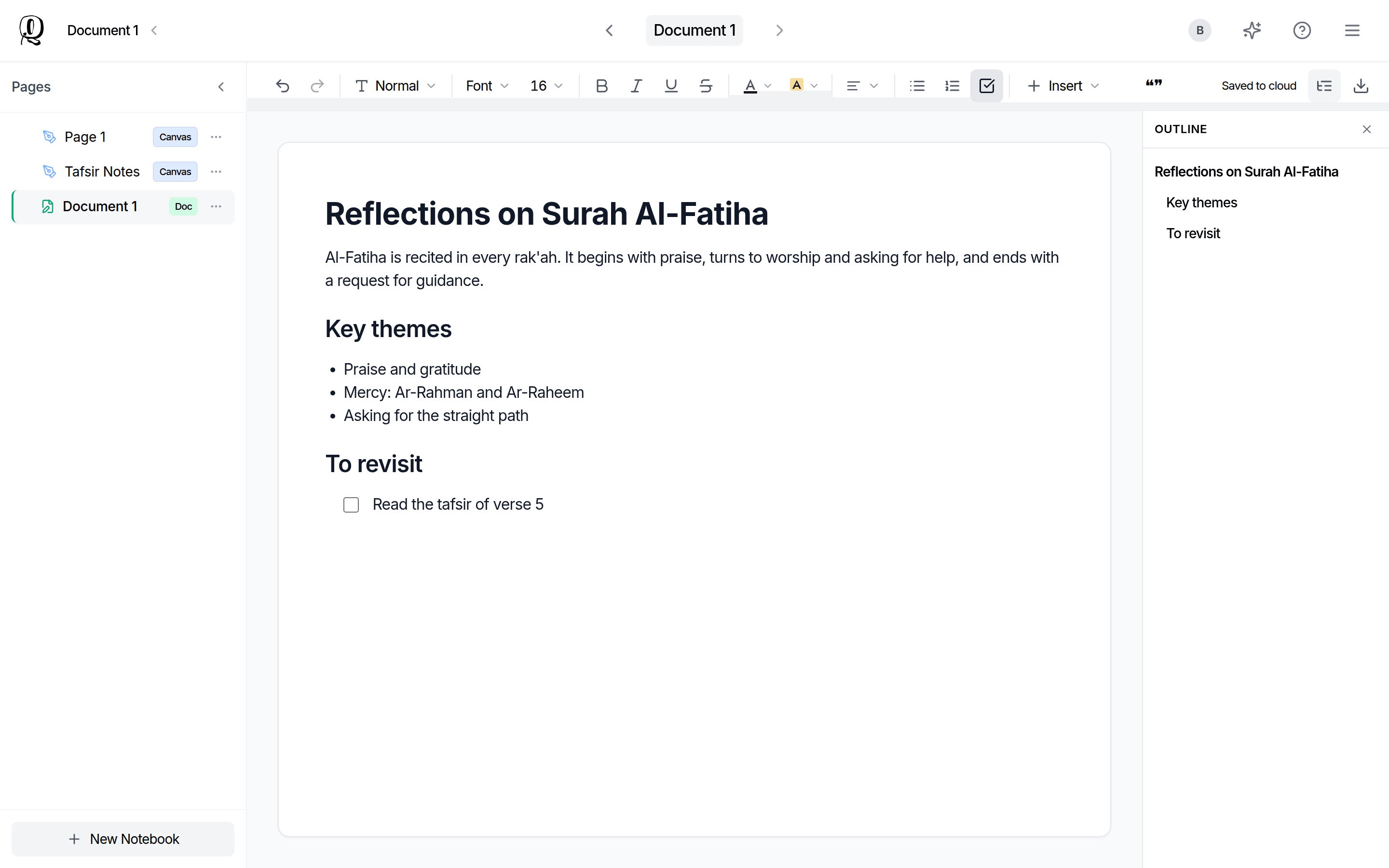
- —Outline: shows your headings in a side panel so you can jump around a long document
- —Download document
Keyboard shortcuts such as Cmd/Ctrl+B, I and U work as usual. You can also start a line with #, ## or ### for a heading, - for a bullet list or [ ] for a task.
The toolbar shows Saved to cloud once your changes are saved.
The / menu
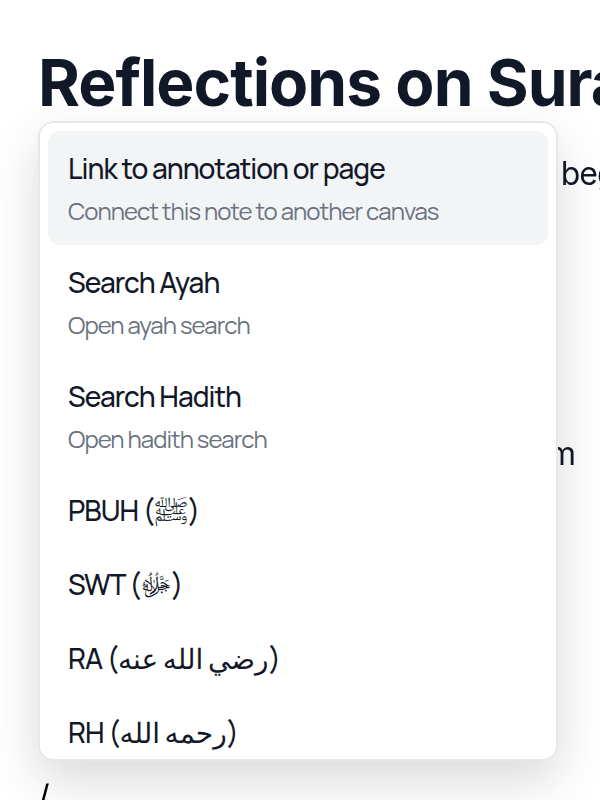
Type / in a Document to open a menu with Link to annotation or page, Search Ayah, Search Hadith and honourifics such as ﷺ (PBUH), SWT, RA and RH.
Outline
Tap the outline button at the top right to see your headings in a side panel. Tap a heading to jump to it.
Pages
A Document is one continuous page that grows as you write, so there's nothing to add or delete.
Images and videos
Add images with Insert > Image, by dragging a file in, or by pasting. Images need an internet connection to upload. If you see "Couldn't add the image. Check your connection and try again", reconnect and retry.
Paste a YouTube link into a Document to add a playable video.
Older documents
Older documents are converted to this format the first time their owner opens them. The original pages, including any handwriting, are kept: tap Original pages (read-only) at the top of the document to see them.
Exporting
See "Exporting your notes".
Related Articles
Was this helpful?
Ready to annotate the Qurʼān?
Qurannotate is free to start — no sign-up required on web.