Annotating the Qur'an: verses, words, surahs and pages
Add notes to a word, verse, surah or page, and reopen them from the Qur’an.
Last updated 27 September 2026
Every note in a Qur'an mushaf is attached to one spot: a word, a verse, a surah or a page. Each note opens as its own large canvas. When you finish, it closes back into the page and leaves a coloured highlight, so you can see where your notes are.
Opening a note at each level
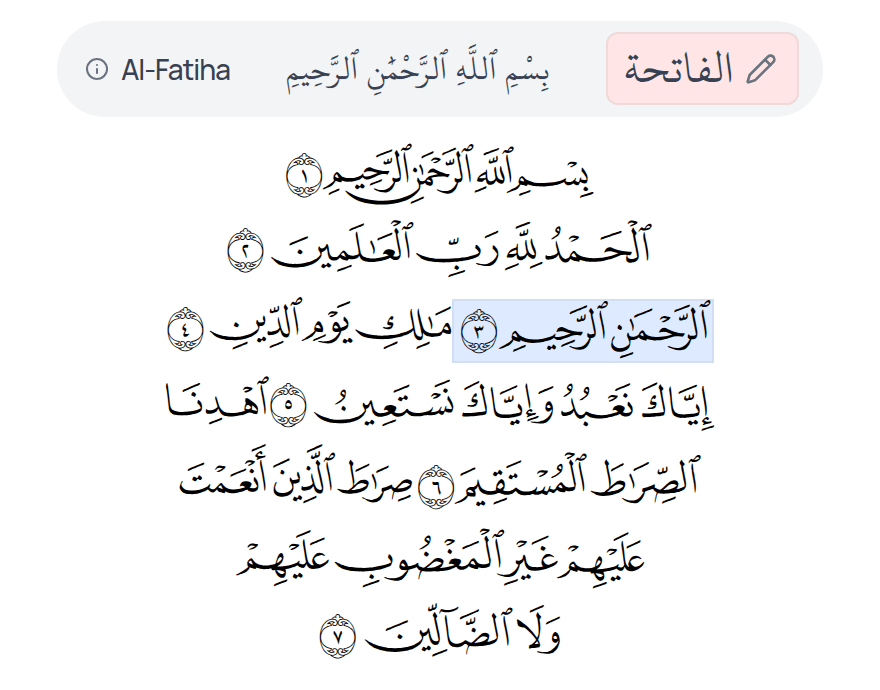
Word: tap (or click) the word.
Verse:
- —In page-style mushafs (Uthmani, Tajweed Colours, IndoPak, Word by Word), tap the end-of-verse marker, the last symbol of the verse. On desktop it highlights when you hover over it.
- —In an Ayah by Ayah mushaf, tap the verse's box outside the words.
Surah: tap the surah's name banner at the start of the surah. (The small "i" button next to it shows surah information instead.)
Page: tap the Page N button in the header (tooltip "Annotate this page").
Traceable mushafs work differently. Each page opens its page canvas automatically, ready for you to trace, rather than tapping verses or words.
Inside a note
Use the canvas tools to write, draw, highlight, type and insert content (see "Canvas tools and Apple Pencil").
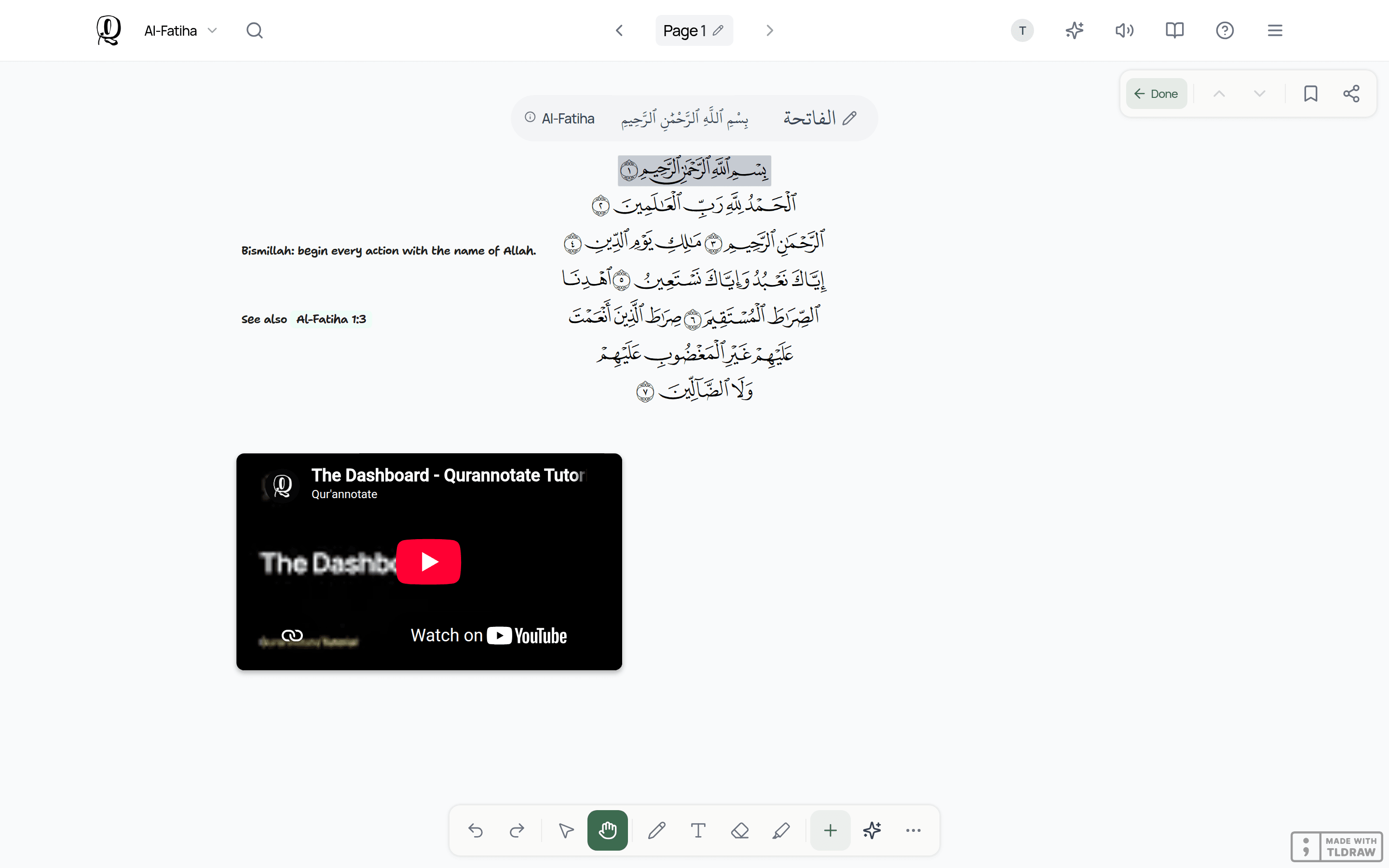
On desktop and iPad, the side strip has:
- —Done: saves and returns you to reading. Shortcut: ⌘⌥↩ on Mac, Ctrl+Shift+Enter on Windows.
- —Previous annotation / Next annotation: step through your notes in Qur'an order.
- —Add bookmark / Remove bookmark
- —Share / Export
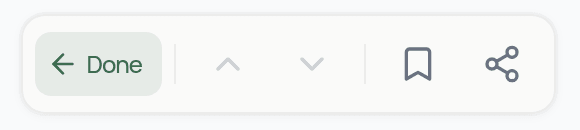
On phones, the same actions are in the row at the top of the screen (the ✓ returns you to reading). While a note saves on a phone, Done shows "Saving...".
How notes show on the page
After you tap Done, the spot you annotated gets a highlight: the word, the verse, the surah banner or the Page button. Tap it again to reopen the note.
You can change the highlight colours: open More actions > Theme > Highlight Colors and set colours for Verses, Words, Surah Headings and Pages.
Deleting a note
Erase or delete everything on the note's canvas and tap Done. An empty note is removed. There is no trash for deleted notes, so they can't be recovered.
Finding your notes: the Annotation Map
The Annotation Map lists where you've written notes:
- —From the dashboard: Analytics > Annotation Map.
- —Inside a mushaf: open the navigation panel and tap View annotation map.
Choose a mushaf, switch between Annotated Only and All, and filter by verses, words, pages or surahs. Expand a surah and tap a page to go to it.
Shared mushafs
- —If you're a viewer on someone's mushaf, you can open notes that already exist but not create new ones. The Page button shows an eye icon ("View page annotation").
- —If you're an editor, you'll see coloured borders where other people are currently editing.
Related Articles
Was this helpful?
Ready to annotate the Qurʼān?
Qurannotate is free to start — no sign-up required on web.